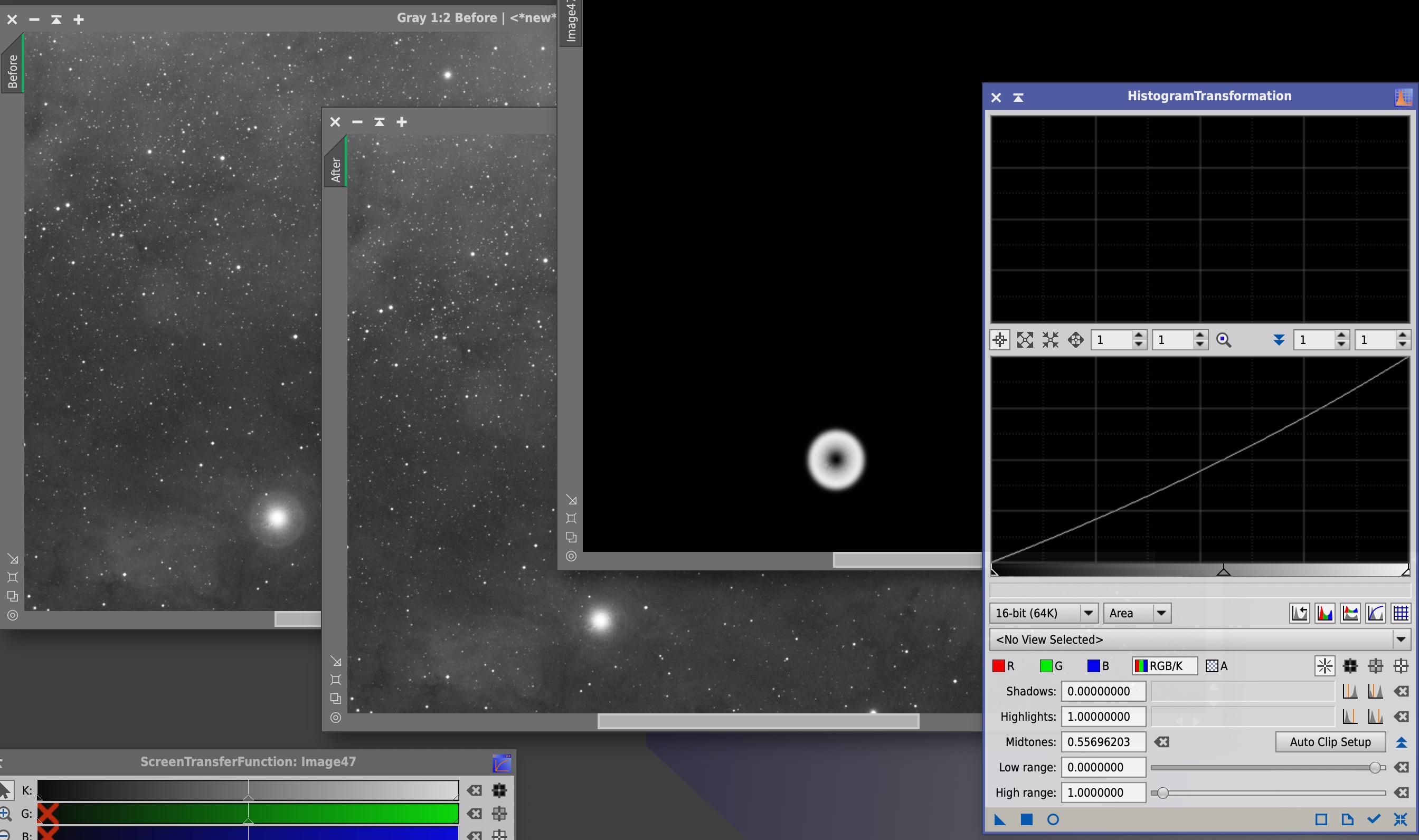
Hi there! I also have had issues with this area, but I recently saw a YouTube video that addressed the issue and I find that the approach works really well (though it's not the simplest thing to do). In essence, you create a clone of your offending lights image and create a mask out of it, defining the left, right, top and bottom coordinates of the halo you want to mitigate, you then soften the edges of the mask, apply it to your lights image(s) and use the HistogramTransformation tool or Curves tool to adjust the brightness of the halo until it fades away.
The formula to put into PixelMath is as follows: iif(sqrt((x()-(R+L)/2)^2 + (y()-(B+T)/2)^2) < (R-L)/2, 1, 0)
On the "Symbols" pane you define the coordinates for the Left (L), Right (R), Top (T) and Bottom (B) of the halo, using the readout doodad to find the X coordinate for the Left and Right points, and the Y coordinate for the Top and Bottom. I made an icon out of the PixelMath formula so that I have it ready whenever I need it, and I'll try to share it here.
HaloCorrector.xpsmEdited to include a link to the page where I found the above solution:
https://digitalstars.wordpress.com/2019/10/27/tutorial-how-to-eliminate-star-halos-in-pixinsight/