Crescent Nebula raw data available for processing - 21 hours collected

15 replies510 views
Fabian Butkovich avatar

Hello all,

The time has come again to offer up some of my raw image data for anyone to process if you’re up for it, specifically my 2025 acquisition of the Crescent Nebula in Cygnus. I captured this in a relatively narrow FOV with my Celestron C6 scope + 0.63X reducer. I have about 25 hours of data collected on it but my final integrated stack out of PixInsight WBPP module is 21hours, in Bortle 8. I imaged this object entirely with a OSC through an Optolong L-eNhance dual-narrowband filter.

📷 NGC 6888 (Crescent Nebula) 2025NGC 6888 (Crescent Nebula) 2025

https://app.astrobin.com/i/h788ec/

For my own processing I decided to try an do an HOO composition or treatment, of which was the first time ever I have done so. I did manage to extract quote a bit of the Oxygen and make it stand out quite a bit, but still not very happy with it, mainly the color hue, is still too close to green or cyan and not purely “blue”. I attempted to correct this with selective masking in Photoshop before bringing back into PI and it worked some, but also seemed to decrease the luminosity of the blue at the same time.

Moreover, I also want to see other processed versions of this because when I look at other astrographs of this DSO, I just am not pleased with my own version. I am striving in 2026 to get better about my image processing. Perhaps it’s because I tend to be a bit aggressive on the vibrance/color treatment, or I am bad at managing the sky background levels, or overstretching, but my images always end up looking too “fake”. So I would love to learn some tips and advice for how I can improve and also what should I expect. Ultimately in the end I remember that to some point image processing is artistry, and that no two images processed by different individuals will ever look the same even given the same base data.

Attached is all the raw image data, calibration frames etc. as well as an already integrated master light frame.

Crescent Nebula 2025

I have also included the PI project so you can see my workflow.

Happy processing and good luck! I am eager to see what can come out of this.

Helpful Engaging Supportive
andrea tasselli avatar
Fabian Butkovich:
I did manage to extract quote a bit of the Oxygen and make it stand out quite a bit, but still not very happy with it, mainly the color hue, is still too close to green or cyan and not purely “blue”


OIII is NOT meant to be "blue" but rather close to cyan instead so you got that right.
Jan Erik Vallestad avatar

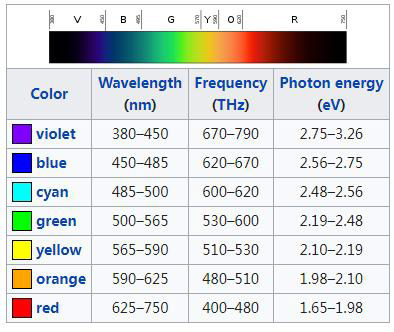
Andrea is exactly right. The oxygen is more greenish than blue as can be seen from the chart below, and the fact that Oiii peaks at around 496-500nm or thereabout.

Basic Information of The Visible Light - AGC Lighting

Cédric PASTOR avatar

Hi Fabian!

Thanks for sharing your data, I’m really glad I got the chance to work on this target since I’ve never imaged it myself.
I started from your raw frames and here’s the result of my interpretation.
I’m definitely not an expert, but I tried to keep a natural look while bringing out the OIII a bit more, and keeping the Ha a bit more restrained for balance.
My workflow is a bit messy and I didn’t write down everything, but if you have any questions feel free to ask and I’ll gladly answer.

Great job on the acquisition, especially under Bortle 8!

📷 NGC6888.pngNGC6888.png

Well Written Respectful Concise Engaging Supportive
Fabian Butkovich avatar

@Cédric PASTOR amazing edit of yours! I am quite surprised to see how much of the Oxygen shell you were able to reveal, it stands out alot more than in my version. I assume you did a weighted combination of the OIII and Ha channels in PI PixelMath? Also, did you stretch the background to a different amount than the nebula itself? Perhaps that why in my version the blue doesn’t really stand out much because the background and nebula are all just red.

Respectful Engaging Supportive
Cédric PASTOR avatar

@Fabian Butkovich No, I never mix spectral bands into the RGB channels. My workflow depends on the target and on the signal quality, but for your image I mainly worked with masks.

Here’s how I worked on your image. I didn’t save my workflow, so this isn’t an exact step-by-step copy of what I did, but more of a general overview of my workflow.
I redid the steps to take some screenshots, but I spent less time than when I processed your image.

  • Preparing the image for mask creation
    I started by removing the stars, then did the usual stuff (DBE, denoise, etc.) while still linear. After that, I did a pretty strong stretch to make all the colors pop out.


    📷 stretched.pngstretched.png

  • Creating color masks
    From that stretched image, I used PixelMath to generate R, G, B, C, M and Y masks.
    For a narrowband image, I usually end up using the R mask for Ha, the G/B/C masks for OIII, and the Y/M masks to possibly bring out some specific regions.
    I tweak them depending on which areas I want to highlight.
    Also, the choice of which masks to use depends a lot on how the image is processed (like background neutralization, stretching, etc.). So for the same image, the OIII signal can show up only in the green channel, or sometimes in both green and blue channels.

    In my case, in the green mask, the OIII presence was clearly visible, but the background was too bright. So I created a nebula-shaped mask to darken the background in the green mask.

    In the end, I got things like:
    • an OIII mask for the nebula,
    • an Ha mask for the nebula,
    • an Ha mask for the background,
    • a yellow mask for areas that contain both Ha and OIII (red + green = yellow).

    📷 masks.pngmasks.png

  • Selective corrections
    Then I went back to the stacked color image, and after stretching it I used the SelectiveColorCorrection script with my masks to boost the areas I wanted.

    📷 stretched_colorCorrected.pngstretched_colorCorrected.png

  • Stars
    I also process the stars separately, usually with the Seti Astro NB to RGB Star Combination script for narrowband images, and I add them back at the end of the workflow.

    Of course, the more signal you have in the data, the easier it is to reveal the colors in a clean and natural way. But this workflow can help rescue images with low signal, especially when OIII is weak. I’m not saying it’s the best method, just the one I used for your image.

    Hope this makes sense! Let me know if you want more details.

Well Written Helpful Insightful Engaging Supportive
Gordon Pegue avatar

@Fabian Butkovich

The pxiproject data that you shared for the Crescent Nebula here is not opening properly in my PI. The console log reports 52 errors encountered; there are 2 workspaces that result when I open the project, with a total of 2 images:

original_r In one workspace along with 18 tool icons

range_mask1 In the other workspace

That’s it….

I did not change the file name of the pxiproject file from what was extracted from the downloaded zip file so my thinking is that there is something amiss with my local path on my Windows 11 machine.

My full path is:

D:\PixInsightData\NGC6888\Crescent Nebula 2025.pxiproject

Do you have suggestions on how I might path the project properly so it will open completely?

Do I need the other files in your download archive to make this work?

Thank you in advance,

Gordon

Respectful
Juan Manuel avatar

Hi @Fabian Butkovich

I saw your post and thought, why not...

📷 Crescent nebula PI_astrobin.jpgCrescent nebula PI_astrobin.jpgWell, I'm a complete beginner with Pi and processing, but you have some great information! I hope you like it.

JuanM.

Cédric PASTOR avatar

Gordon Pegue · Jan 12, 2026, 02:56 AM

@Fabian Butkovich

The pxiproject data that you shared for the Crescent Nebula here is not opening properly in my PI. The console log reports 52 errors encountered; there are 2 workspaces that result when I open the project, with a total of 2 images:

original_r In one workspace along with 18 tool icons

range_mask1 In the other workspace

That’s it….

Hi Gordon,

On my side it works correctly: no errors when opening, and PI loads 3 populated workspaces with a total of 24 views. So the project itself seems fine.

You mention having opened a single ZIP file, but when I download the project from Google Drive, it actually comes split into several ZIP files. So it’s possible that your issue comes from that: if you only extracted one ZIP, you’re missing part of the files that make up the PI project, which would explain the errors and the incomplete project when opening it.

Well Written Helpful Insightful Concise
Andreas avatar

Hi Fabian,

thank you for sharing your great data!

Here’s my quick attempt on processing it. Will perhaps need some more color correction.

📷 NGC6888_1.jpgNGC6888_1.jpgCS
Andreas

Gordon Pegue avatar

Cédric PASTOR · Jan 12, 2026, 08:34 AM

Gordon Pegue · Jan 12, 2026, 02:56 AM

@Fabian Butkovich

The pxiproject data that you shared for the Crescent Nebula here is not opening properly in my PI. The console log reports 52 errors encountered; there are 2 workspaces that result when I open the project, with a total of 2 images:

original_r In one workspace along with 18 tool icons

range_mask1 In the other workspace

That’s it….

Hi Gordon,

On my side it works correctly: no errors when opening, and PI loads 3 populated workspaces with a total of 24 views. So the project itself seems fine.

You mention having opened a single ZIP file, but when I download the project from Google Drive, it actually comes split into several ZIP files. So it’s possible that your issue comes from that: if you only extracted one ZIP, you’re missing part of the files that make up the PI project, which would explain the errors and the incomplete project when opening it.

That was the issue @Cédric PASTOR . My first attempt at downloading the project file the other night failed after a long delay (like over 30 minutes…). The next attempt only resulted in one zip file being pulled down. After going back to @Fabian Butkovich’s Google drive location just a few minutes ago, I was able to pull down 5 zip files and extract them. Now the project opens OK in 3 workspaces with 24 views.

Thanks to Fabian for sharing the project! I’ll use it to better understand how to approach HOO (or SHO) processing. The pixelmath and GHS steps embedded in the history explorer windows of certain intermediate images in the project will be very helpful as these particular steps are still a bit of a puzzle for me.

I noticed that the final image has “photoshop” in the name… How much final layer combination and/or tweaking do you do in PS @Fabian Butkovich ??

Helpful Respectful Engaging Supportive
Fabian Butkovich avatar

Cédric PASTOR · Jan 11, 2026, 11:22 PM

@Fabian Butkovich No, I never mix spectral bands into the RGB channels. My workflow depends on the target and on the signal quality, but for your image I mainly worked with masks.

Here’s how I worked on your image. I didn’t save my workflow, so this isn’t an exact step-by-step copy of what I did, but more of a general overview of my workflow.
I redid the steps to take some screenshots, but I spent less time than when I processed your image.

  • Preparing the image for mask creation
    I started by removing the stars, then did the usual stuff (DBE, denoise, etc.) while still linear. After that, I did a pretty strong stretch to make all the colors pop out.


    📷 stretched.pngstretched.png

  • Creating color masks
    From that stretched image, I used PixelMath to generate R, G, B, C, M and Y masks.
    For a narrowband image, I usually end up using the R mask for Ha, the G/B/C masks for OIII, and the Y/M masks to possibly bring out some specific regions.
    I tweak them depending on which areas I want to highlight.
    Also, the choice of which masks to use depends a lot on how the image is processed (like background neutralization, stretching, etc.). So for the same image, the OIII signal can show up only in the green channel, or sometimes in both green and blue channels.

    In my case, in the green mask, the OIII presence was clearly visible, but the background was too bright. So I created a nebula-shaped mask to darken the background in the green mask.

    In the end, I got things like:
    • an OIII mask for the nebula,
    • an Ha mask for the nebula,
    • an Ha mask for the background,
    • a yellow mask for areas that contain both Ha and OIII (red + green = yellow).

    📷 masks.pngmasks.png

  • Selective corrections
    Then I went back to the stacked color image, and after stretching it I used the SelectiveColorCorrection script with my masks to boost the areas I wanted.

    📷 stretched_colorCorrected.pngstretched_colorCorrected.png

  • Stars
    I also process the stars separately, usually with the Seti Astro NB to RGB Star Combination script for narrowband images, and I add them back at the end of the workflow.

    Of course, the more signal you have in the data, the easier it is to reveal the colors in a clean and natural way. But this workflow can help rescue images with low signal, especially when OIII is weak. I’m not saying it’s the best method, just the one I used for your image.

    Hope this makes sense! Let me know if you want more details.

Thank you so much @Cédric PASTOR for providing your detailed workflow! Iv’e never used PixelMath for creating masks before, it’s something I will definitely have to explore! Usually I just use the range mask tool, and only more recently I started experimenting with the color mask script utility.

Also only more recently I started getting the idea of just using the image itself (usually starless) as a mask for another window in my workflow.

“So I created a nebula-shaped mask to darken the background in the green mask.” - This was the smart move, as it’s what really makes the Oxygen POP against the background Ha.

Thank you again for processing my image and inspiring me with some new editing techniques and tips!

CS

Fabian

Respectful Supportive
Fabian Butkovich avatar

Juan Manuel · Jan 12, 2026, 03:46 AM

Hi @Fabian Butkovich

I saw your post and thought, why not...

📷 Crescent nebula PI_astrobin.jpgCrescent nebula PI_astrobin.jpgWell, I'm a complete beginner with Pi and processing, but you have some great information! I hope you like it.

JuanM.

Very nice edit! I love the cooler tones and tint, Nebula and OIII stands out very nicely. Thanks for sharing!

Well Written Respectful Supportive
Fabian Butkovich avatar

Andreas · Jan 12, 2026, 02:29 PM

Hi Fabian,

thank you for sharing your great data!

Here’s my quick attempt on processing it. Will perhaps need some more color correction.

📷 NGC6888_1.jpgNGC6888_1.jpgCS
Andreas

Thank you @Andreas for processing my data! Lovely edit you have there. I especially like the added star spikes? Was this done in PI? if so which module or tool is this?

Andreas avatar

Fabian Butkovich · Jan 15, 2026, 05:35 PM

Thank you @Andreas for processing my data! Lovely edit you have there. I especially like the added star spikes? Was this done in PI? if so which module or tool is this?

Hi Fabian,

the star spikes were made in Photoshop with a plugin called “StarSpikes Pro” from ProDigital Software. It is a pay tool.

Happy you like my edit of your data.

Andreas

Well Written Helpful Respectful Concise Supportive
Edwin Keur avatar

📷 Crescent.jpgCrescent.jpgThanks for sharing your data. Here is my attempt.
I used narrowband normalization to make it an HSO image